
Practice Lab
Show Me
Break it down. Show one step at a time.
Many everyday activities are really a series of smaller steps.
Show Me helps turn one meaningful activity into a simple sequence the learner can see, hear, repeat and move through at their own pace.
A teacher or caregiver builds the task once. The learner then uses it like a playlist of steps.
Included with the membership ($36/year)
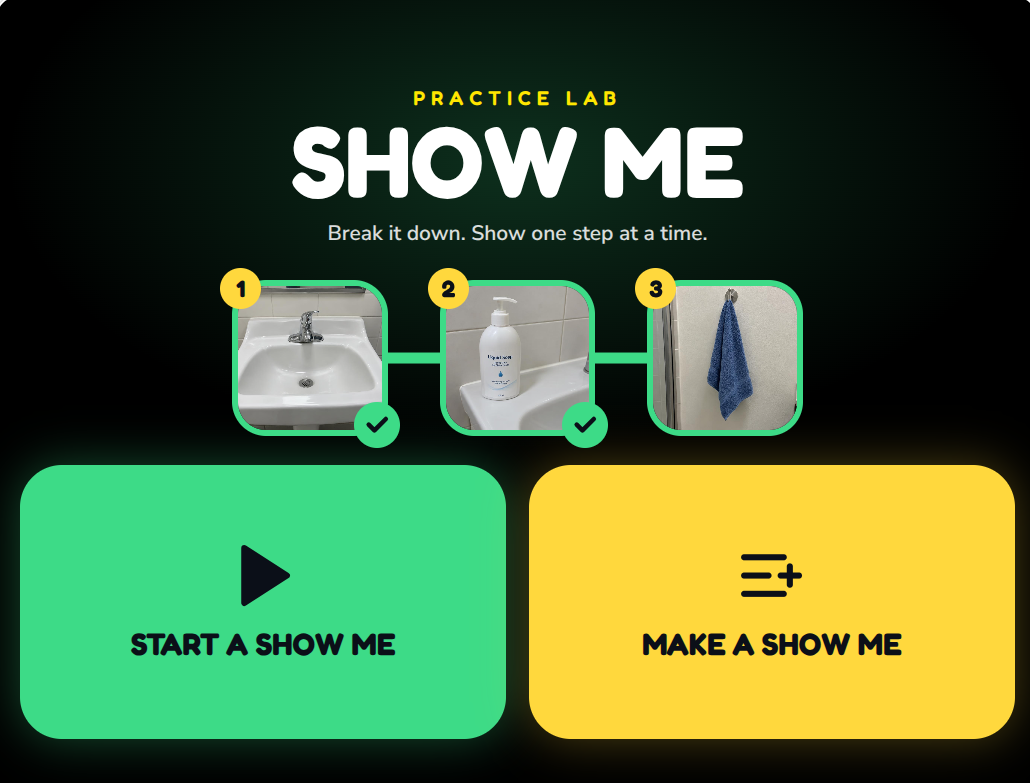
One task. One step. As much help as needed.
Some activities are easy to describe in one sentence but much harder to actually do.
Washing hands, packing a backpack, setting a table, preparing a snack or getting ready for the bus may contain several smaller actions. Show Me makes those steps explicit and accessible.
When watching someone else isn’t enough, show the steps directly.
If one step is still too big, break it down again. There is no special “micro-step” mode. Just add another meaningful step.
Show Me answers a different question.
A schedule asks
What am I doing next?
- Breakfast
- School
- Therapy
- Home
Show Me asks
How do I do this one thing?
- Wash my hands
- Pack my backpack
- Make a snack
- Set the table
Show Me is intentionally narrow. It helps with the steps inside one meaningful activity rather than organizing the learner’s whole day.
Build the task once. Use it step by step.
- 1
Pick a real activity.
Start with something the learner actually needs or wants to do.
- 2
Break it into useful steps.
Add photographs, short videos, spoken instructions or audio-only steps.
- 3
Let the learner move through it.
Each step waits until the learner is ready.
Make a Show Me
Wash Hands
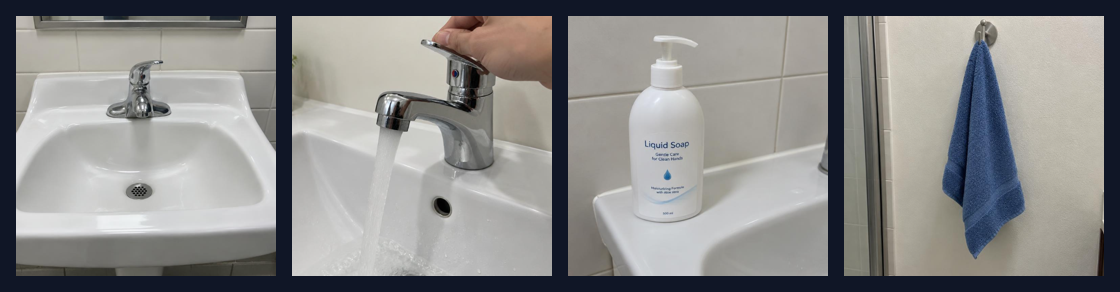
Capture now, finish later
Photograph the activity while you’re actually doing it. Finish organizing the steps later.
One clear step at a time.
During playback, the learner sees one current step on a dark, uncluttered screen.
The step can include a photograph, short video, words and voice — or it can be mainly auditory. Nothing advances automatically. The learner can repeat a step and move on when ready.
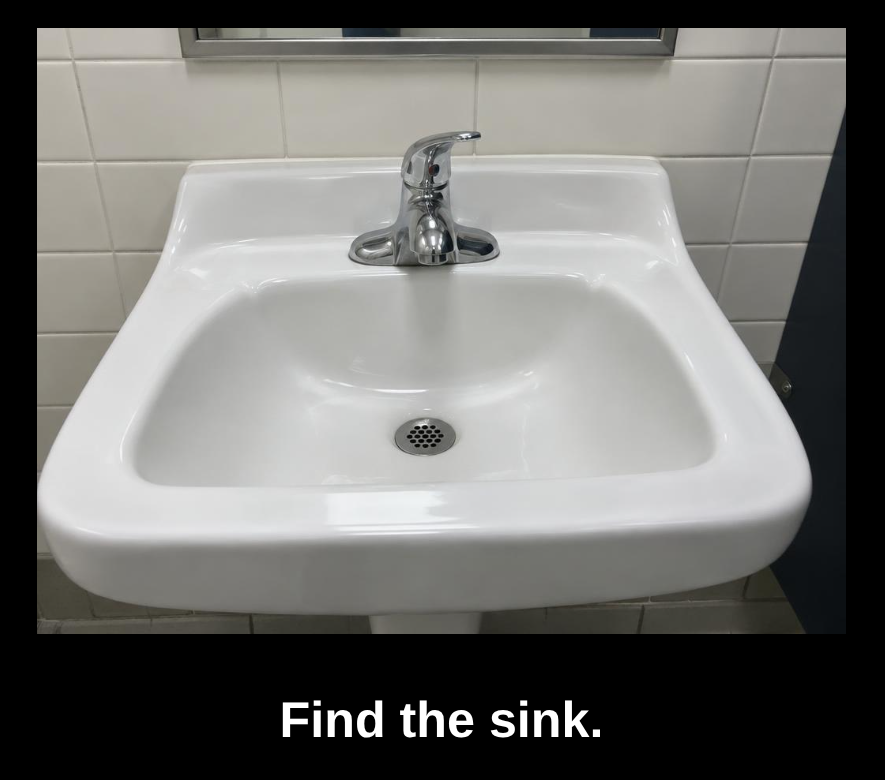
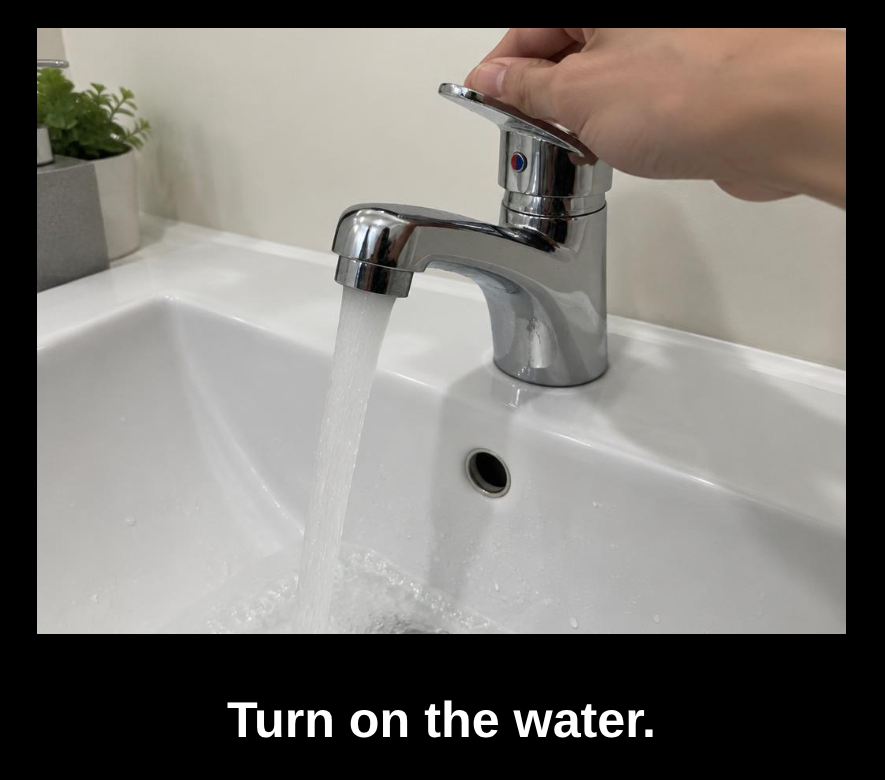
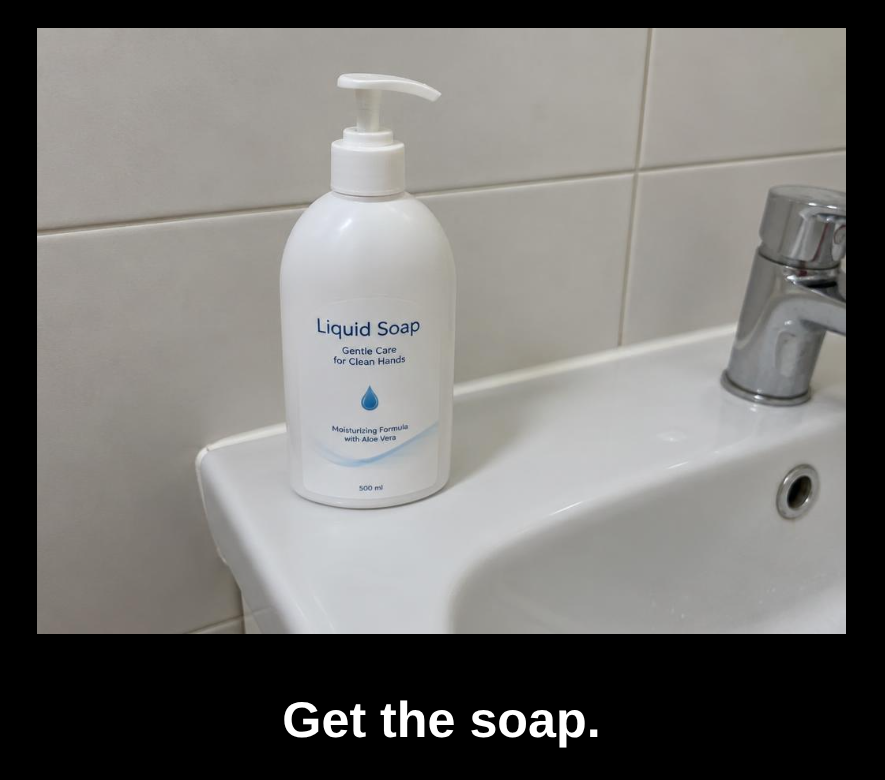
A task can be very simple: one picture, one short instruction, one next step.
Repeat without moving on.
Sometimes the learner needs to hear or see the current step again. Show Me keeps AGAIN separate from NEXT, so repeating information does not accidentally advance the task.
The learner can take as much time as needed. Steps wait indefinitely.
- No timer
- No forced pace
- No auto-advance
A step doesn’t have to be visual.
One learner may benefit from a clear photograph.
Another may need a short video showing movement.
Another may rely mainly on spoken directions, sound, touch or a familiar tactile landmark.
- “Find the zipper pull at the bottom of your coat.”
- “Listen for the water to begin running.”
- “Feel for the raised marker on the handle.”
- “Follow the wall until you reach the doorway.”
For some learners, audio or tactile information may be more useful than another photograph.
Some actions are easier to show moving.
A photograph works well for many steps. But some movements make more sense as a short video.
- folding
- zipping
- stirring
- placing an arm into a coat
- using a tool
- demonstrating a movement pattern
Short instructional clips can show the movement once and then hold the final frame.
Build it where the activity actually happens.
Whenever possible, photograph the learner’s own sink, backpack, classroom, kitchen, table, coat, route or materials. Familiar places and objects often make the steps more meaningful than generic pictures.
Teacher tip: Photograph the result of each step from roughly the same position.
Showing what the workspace looks like after each step can make a sequence easier to follow.
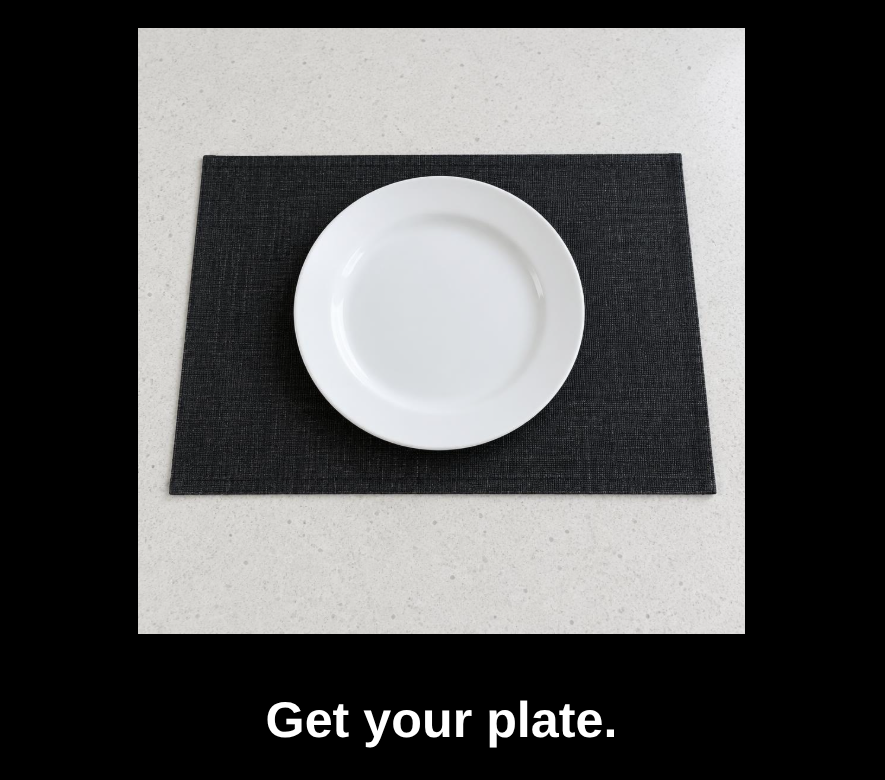
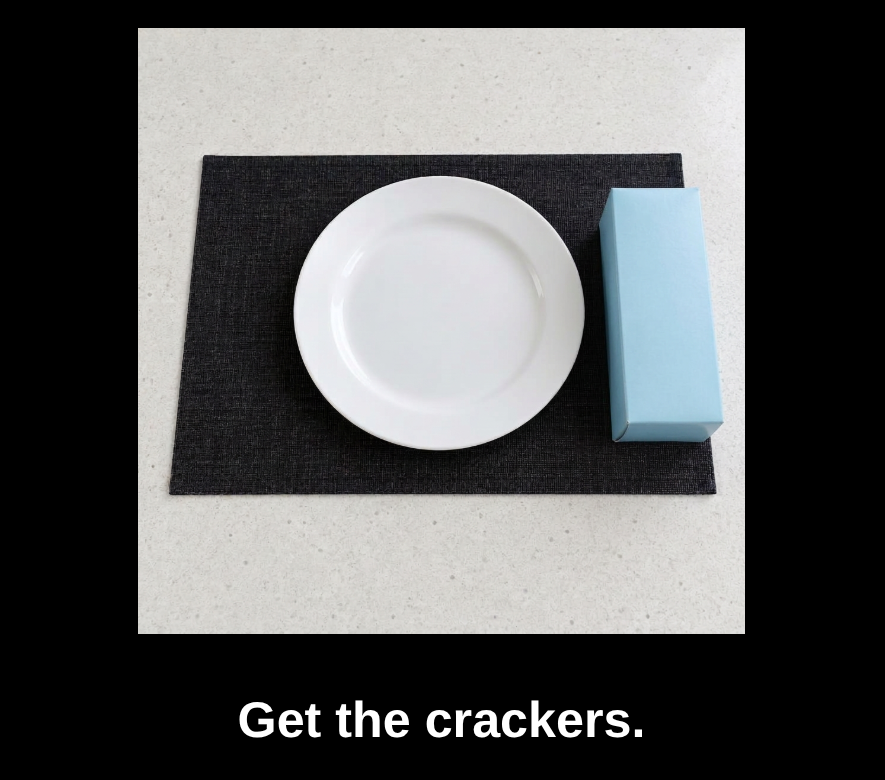
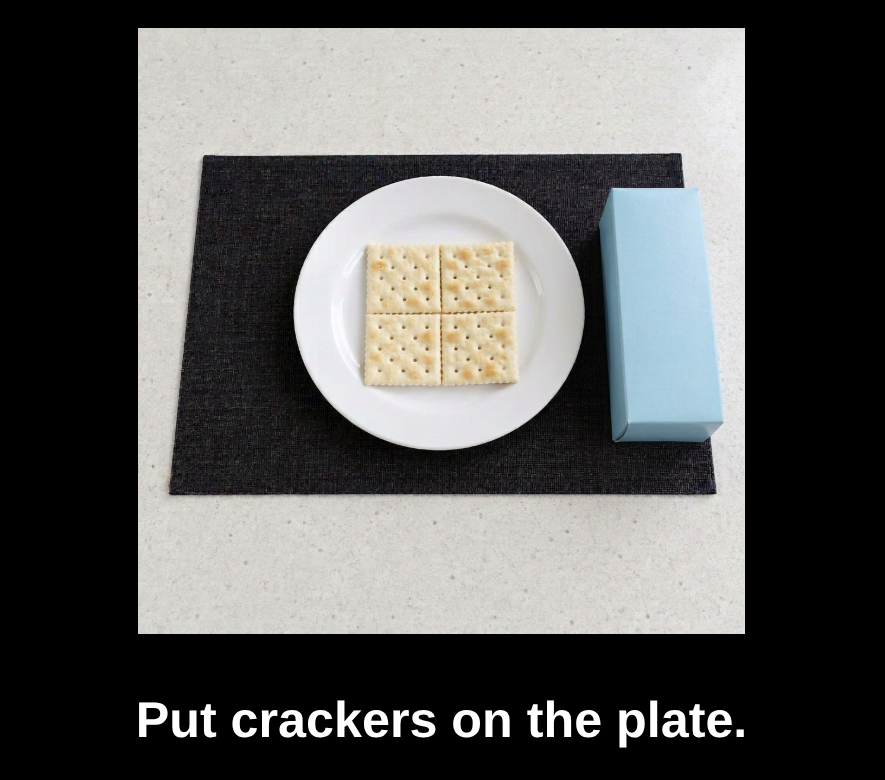
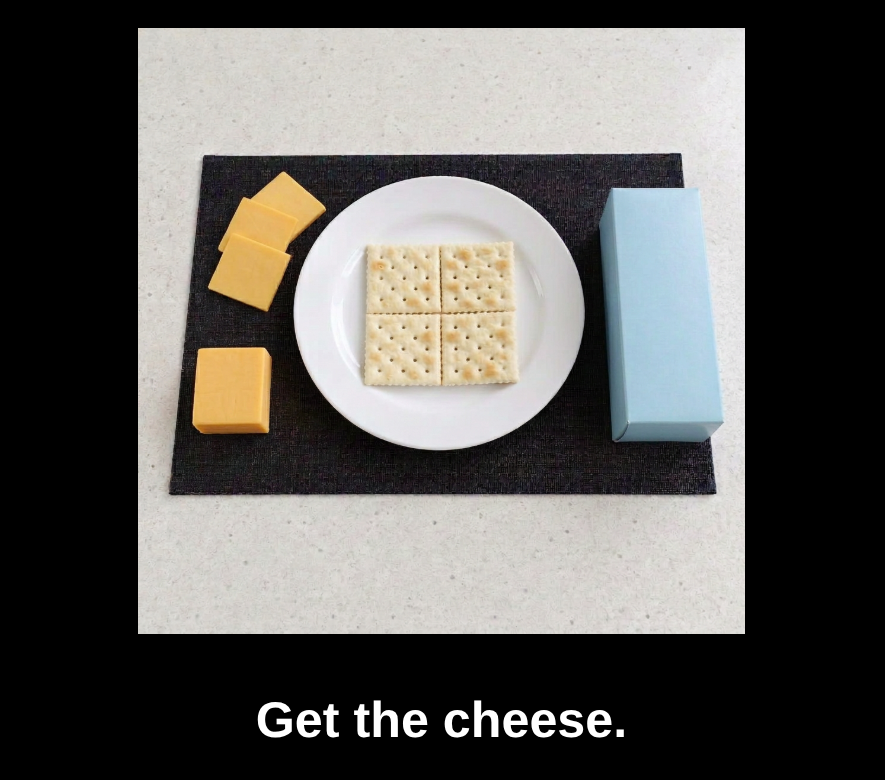
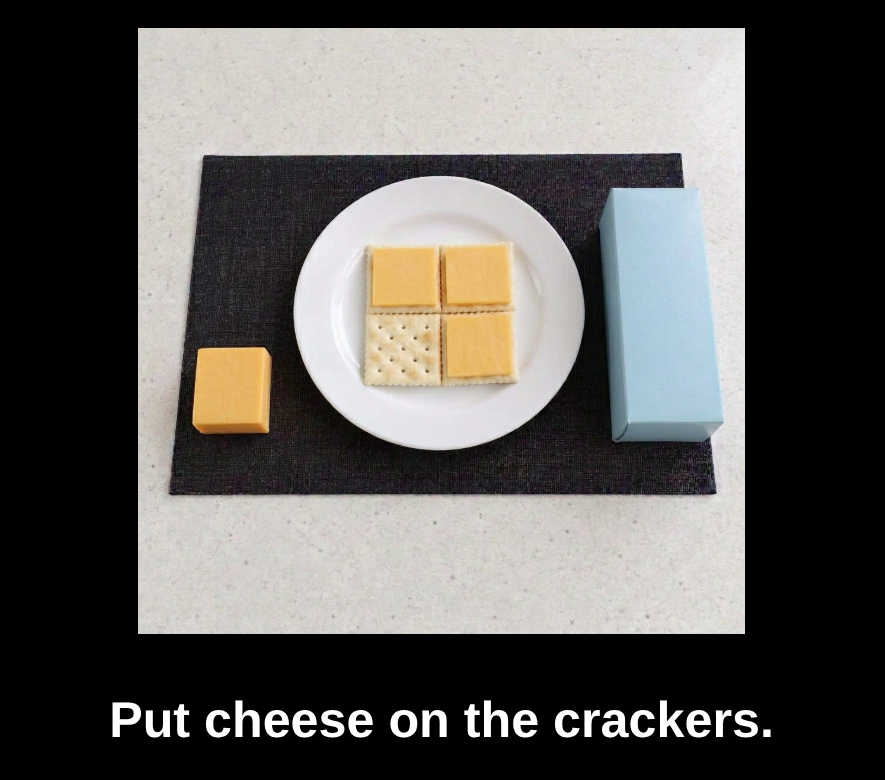
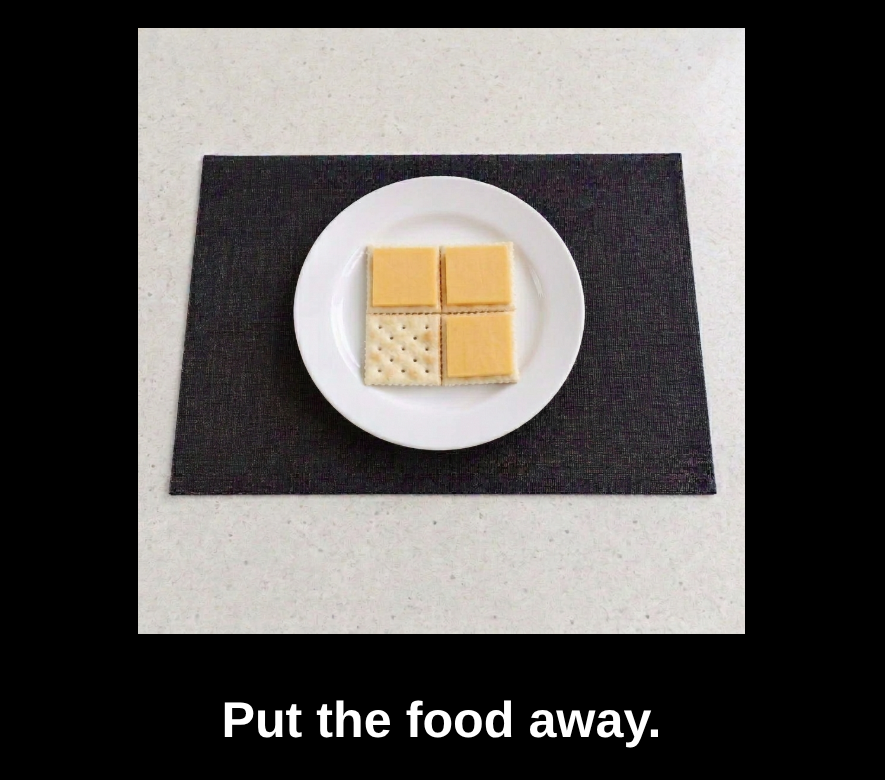
Make a Cracker Snack — the same surface, changing one step at a time.
Show Me isn’t only for self-care.
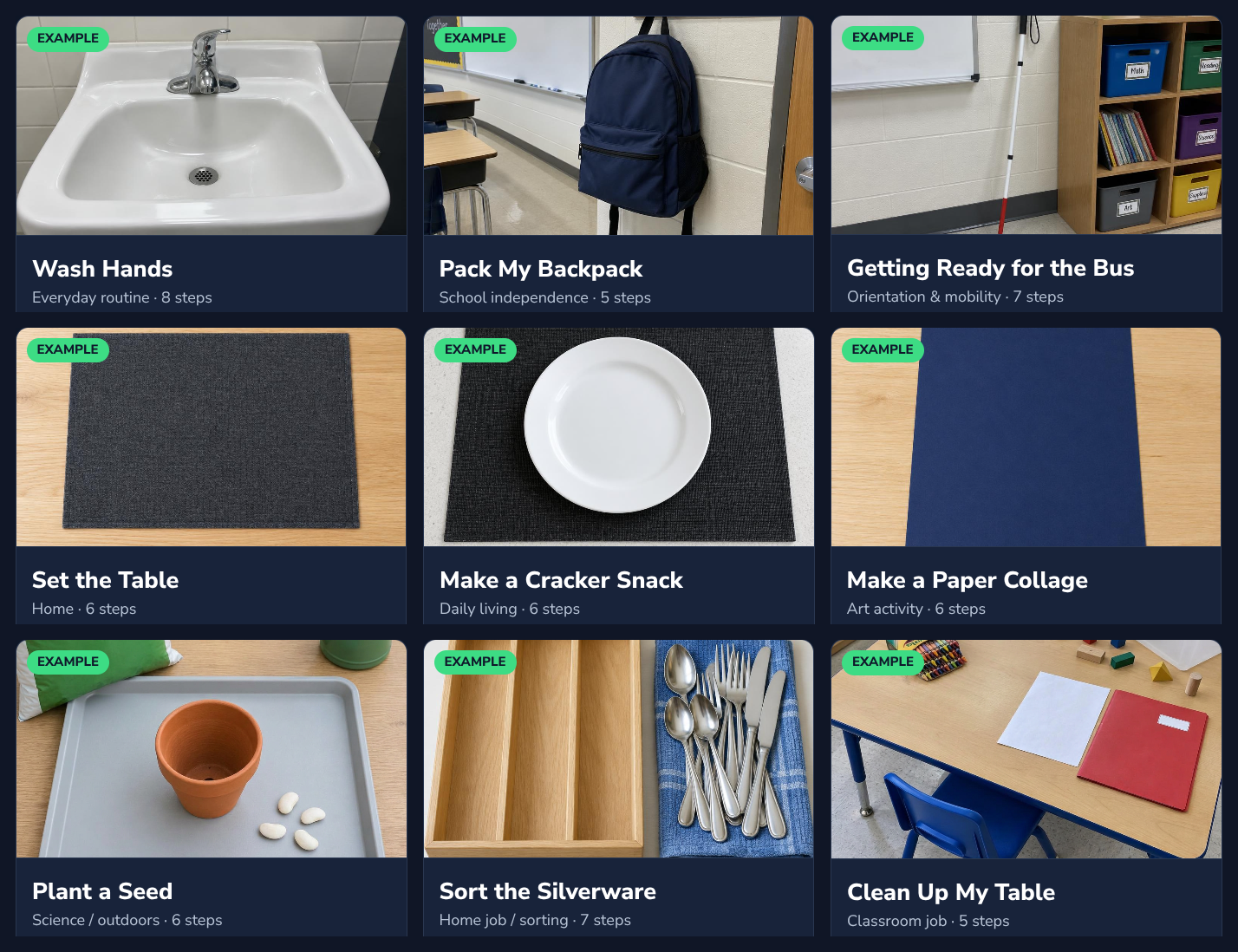
If an activity can be broken into meaningful steps, it may work as a Show Me.
Examples are starting points.
Built-in examples show different ways the app can be used.
A teacher can try an example as-is or use it as a template and replace the demonstration pictures with photographs from the learner’s own environment.
The goal is not to make the learner adapt to the example. The example helps the adult build something more personal.
What might Show Me support?
Depending on the learner and the activity, Show Me may provide opportunities to support:
- daily-living skills
- increasing independence
- understanding sequence
- receptive language
- remembering what comes next
- motor planning
- reducing cognitive load
- organization
- vocational tasks
- orientation and mobility routines
- travel routines
- self-management
The goal is not to become good at using Show Me. The goal is to need less help doing the activity.
Use it when the sequence actually helps.
Show Me is not designed to make someone complete an activity simply because the screen says so.
Use it when clearer steps, accessible information and learner control make a meaningful activity easier to understand or do.
Repeat, pause and next should remain real choices.
Pause. Repeat. Continue when ready.
- Steps wait indefinitely.
- AGAIN repeats without advancing.
- NEXT moves forward.
- Optional BACK can return one step.
- A task can be paused and resumed later — unfinished work continues where it stopped.
Different ways to move through the steps.
Touch
Tap the picture to hear or see it again. Use the arrow to move to the next step.
One switch
A press advances through the task. Choice screens can scan automatically.
Two switches
One control repeats. The other advances.
Space and Enter can be used as keyboard/switch inputs. Swiping continues to work on touch screens.
Adjust the presentation without changing the task.
- black, dark or light background
- large or very large image
- words off, large or very large
- optional border
- one-step or Now + Next
- optional progress
- spoken or recorded voice
- Auto Speak on or off
One step at a time is the default; Now + Next is optional. The task stays the same. The presentation can change to better fit the learner.
Some useful information belongs with the adult.
A teacher can attach a private sensory or access cue to a step without adding clutter to the learner’s screen.
- “Listen for the water to begin running.”
- “Feel for the raised dot on the handle.”
- “The backpack hook is beside the classroom door.”
- “Find the zipper pull at the bottom.”
These reminders can help the adult support the learner using the information that matters most.
Personal tasks stay on the device.
Photos, short videos and recordings are stored in the browser on the device being used. They are not uploaded to Active Looking Lab.
Because they live on the device, clearing browser data can remove them. Show Me includes tools to save individual task files, back up all tasks and reopen saved task files later.
Ideas worth exploring
Breaking meaningful activities into accessible steps is not a new teaching idea. Show Me is my attempt to make that approach easier to personalize and use digitally.
Perkins School for the Blind / CVI Now
Daily routines, task analysis, independent living, CVI access and O&M
Perkins shares approaches for teaching daily-living and travel skills through direct, meaningful and accessible instruction, including support for learners who may miss information through incidental observation.
Visit resourceUNC TEACCH Autism Program
Visual step supports, daily-living routines and independent work
TEACCH resources include structured visual supports and ways of making the steps within everyday tasks clearer and more predictable.
Visit resourceThese organizations did not create or endorse this app. Their public educational resources helped inform some of the teaching ideas behind it.
Pick one real activity.
Break it into a few useful steps. Use the pictures, sounds, videos or cues that actually help. Then let the learner move through it at their own pace.
Included with the membership ($36/year)
Practice Lab
Familiar teaching ideas, made a little easier — and hopefully a little more fun.